Accessing a patient's record
- To locate a patient within EMGuidance Script, begin by searching using the patient’s full name,last name, South African Identity Number (ID) or, for foreign nationals, their passport number. If the patient already has an EMGuidance Script profile, their details will appear in the search results.
- For children, if an ID number is available, they should be registered using their ID. If not available, they can be registered under a guardian’s ID number, which will ensure they appear in search results linked to that guardian.
Updating a patient's record
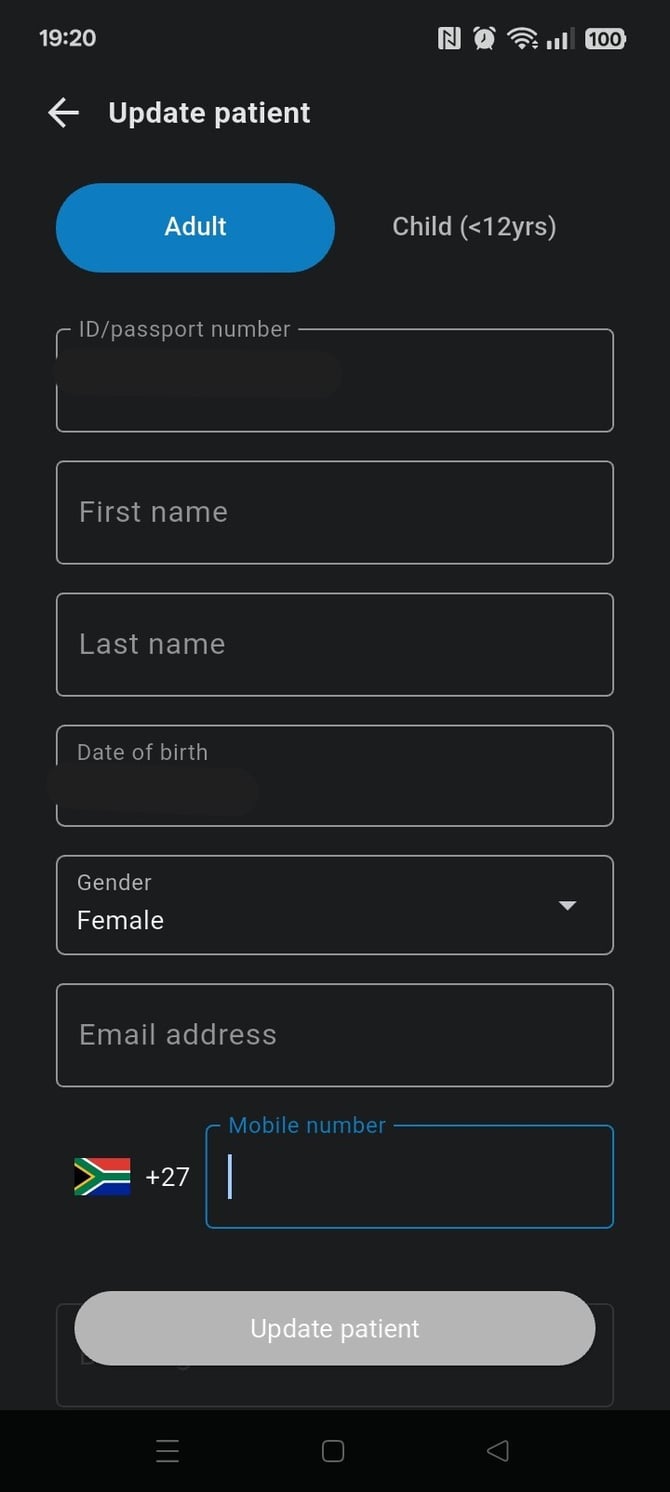
- During patient profile creation, the following fields are mandatory (ID Number/Passport, First Name, Last Name, Date of Birth, Gender, the type of address, address line 1 and the City). All these fields are editable except for the ID Number/ Passport field.
- Using the option to register a child profile using the guardian ID should only be done when no child ID is available.
-
If a patient record exists and needs to be updated, follow the steps below.
-
Here are the steps to follow when using a laptop, desktop or web browser:
1. In a new browser tab, search for “EMGuidance” or navigate directly to the EMGuidance website. On the homepage, click the blue “Sign up” button located in the top-right corner of the screen.
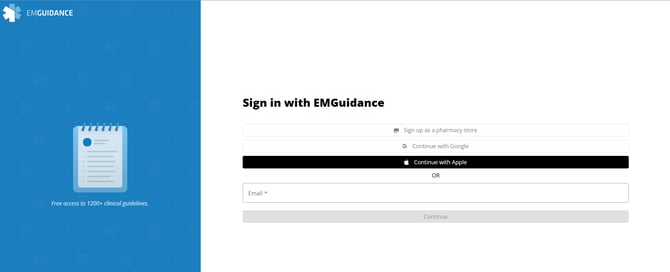
2. On the EMGuidance sign-in page, select your preferred sign-in method: either enter the email address associated with your EMGuidance profile, or sign in using your Google or Apple account.
3. On the EMGuidance discover page, please click on the Script tile.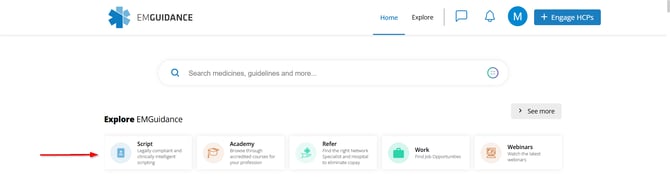
4. Prescribers will be redirected to the Script homepage. On the Script homepage, search for the patient’s profile by entering their last name or ID number/passport number.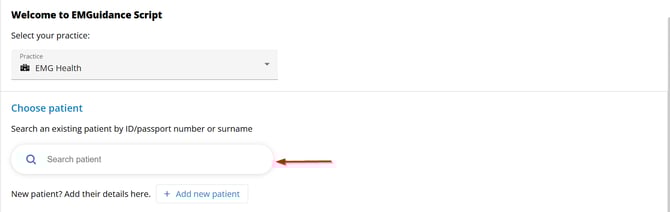
5. If the patient profile has already been created by the prescriber, a “View profile” option will appear next to the “Start script” button. If the patient profile has not been created by the prescriber, a “Request patient history” option will appear next to the “Start script” button.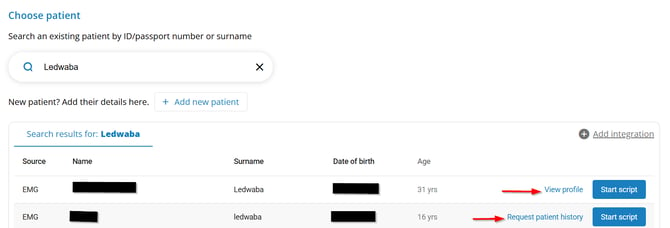
- Request patient history - For patient privacy and security, the patient will receive a One-Time Pin (OTP) via SMS, which must be provided to the new prescriber. This ensures that patient consent is obtained before accessing their script history from other prescribers.
6. Click the “View profile” option next to the blue “Start script” button. The patient’s script history will open. In the top-right corner, click the blue pen/pencil icon to open and edit the profile fields.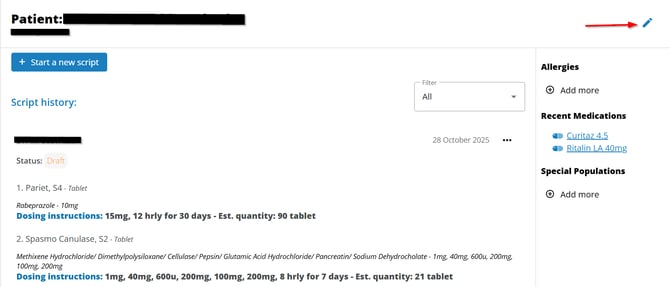
7. Prescribers can edit all patient detail fields except for the ID/Passport number field and can change a patient’s status from child to adult. Ensure that all mandatory fields are completed to enable the Save button.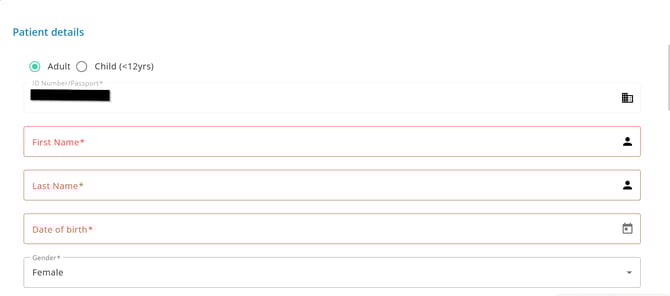
- The below steps are applicable when using the EMGuidance mobile app.
1. On the Discover page please click on the "Script tile".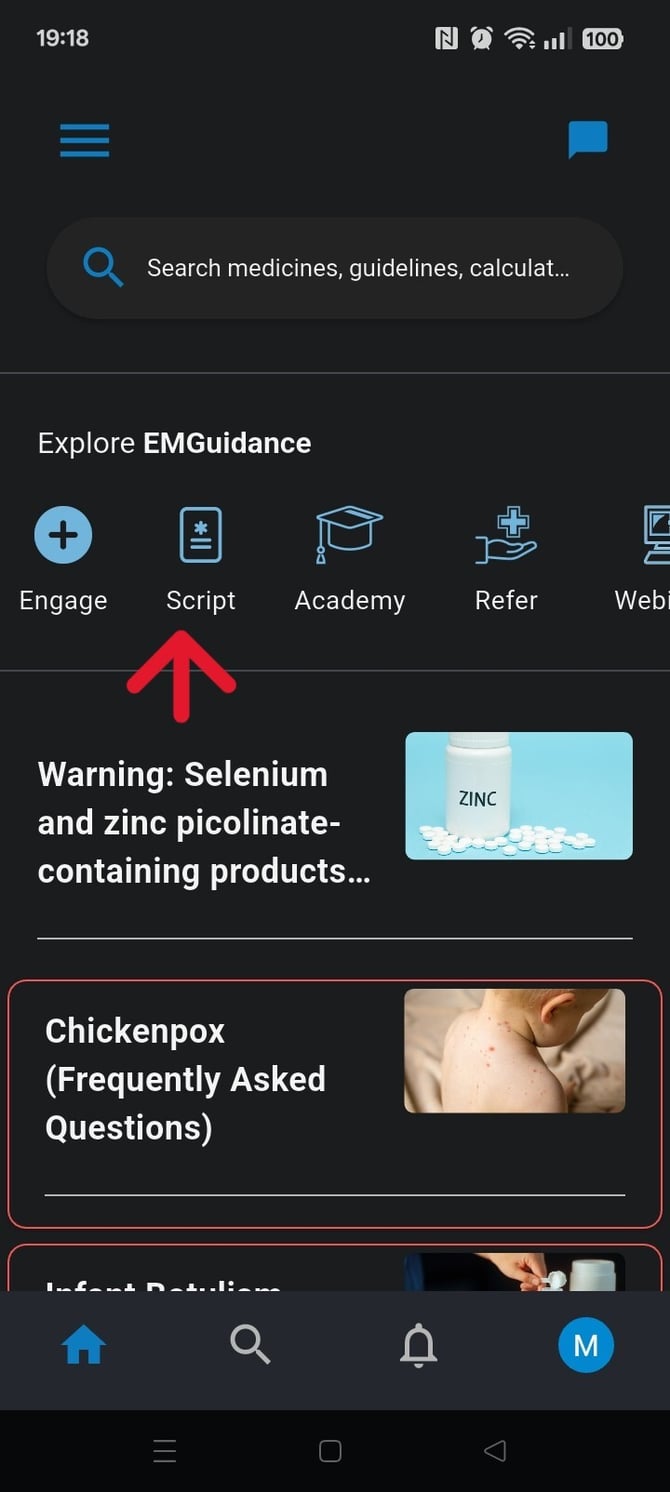
2. You will be redirected to the script home page. Where you will be able to search the patients profile by using their surname or ID number/passport.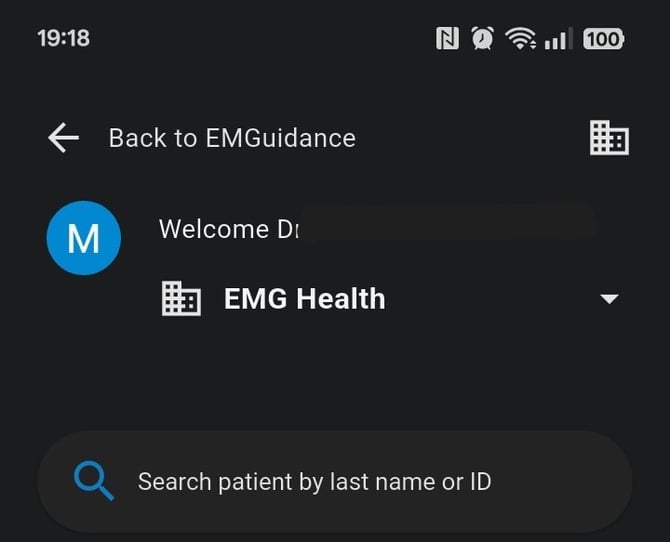
3. In the search results, either a “View profile” or a “Request patient history” option will appear next to the “Start script” button.-jpg.jpeg?width=670&height=1493&name=1000029616%20(1)-jpg.jpeg)
4. Tap the blue pen/pencil icon in the top-right corner to open the editable fields.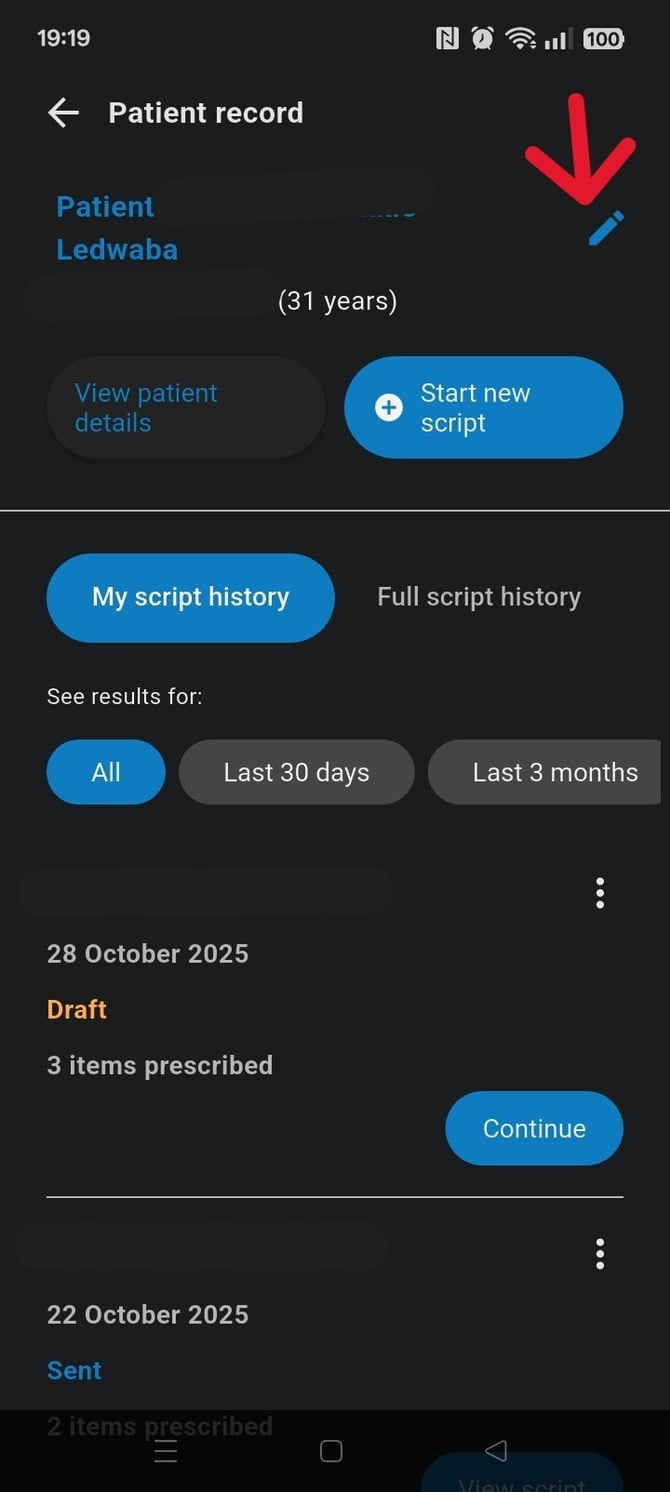
5. Every field is editable except for the ID Number/Passport field.